Dive into the ultimate guide on how to start a Kahoot game, perfect for busy gamers and social planners alike. Whether youre organizing a fun family night a virtual hangout with friends or looking to spice up a team meeting Kahoot offers an engaging interactive experience. This comprehensive resource cuts through the confusion providing clear step-by-step instructions from setting up your account to launching your first quiz. Discover essential tips for choosing the right Kahoot creating compelling questions and managing participants seamlessly. Learn how to leverage Kahoots features for maximum engagement ensuring your game runs smoothly on any device. We address common setup hurdles and offer solutions so you can focus on the fun. Uncover strategies to make your Kahoot sessions memorable and competitive without the usual tech headaches. Get ready to transform your gatherings into lively learning or entertainment events with this trending how-to guide.
How do I get started with Kahoot from scratch?
Getting started with Kahoot is very easy. First, visit kahoot.com or download the Kahoot app. Click 'Sign Up,' choose 'Personal' for social gaming, and register with an email or existing account like Google. Once logged in to your dashboard, you can either create your own quiz by clicking 'Create' or find an existing one by searching 'Discover' for instant fun. It's designed to be intuitive, getting you into the game quickly.
What's the quickest way to find a game to host?
The quickest way to find a game to host is by utilizing Kahoot's extensive 'Discover' library. From your dashboard, click 'Discover' in the top navigation bar. Use the search bar to look for topics like 'Trivia,' 'Pop Culture,' or specific interests. You can filter results by language or type. Once you find a suitable Kahoot, preview it to ensure it fits, then click 'Play' and 'Host' to instantly generate a game PIN. This allows for spontaneous fun without the need to create content yourself.
How do players join my Kahoot game?
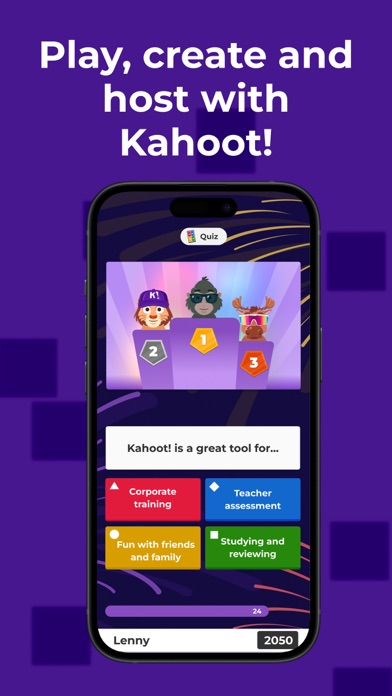
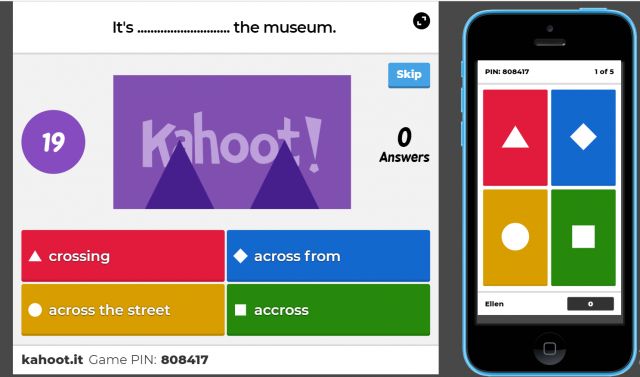
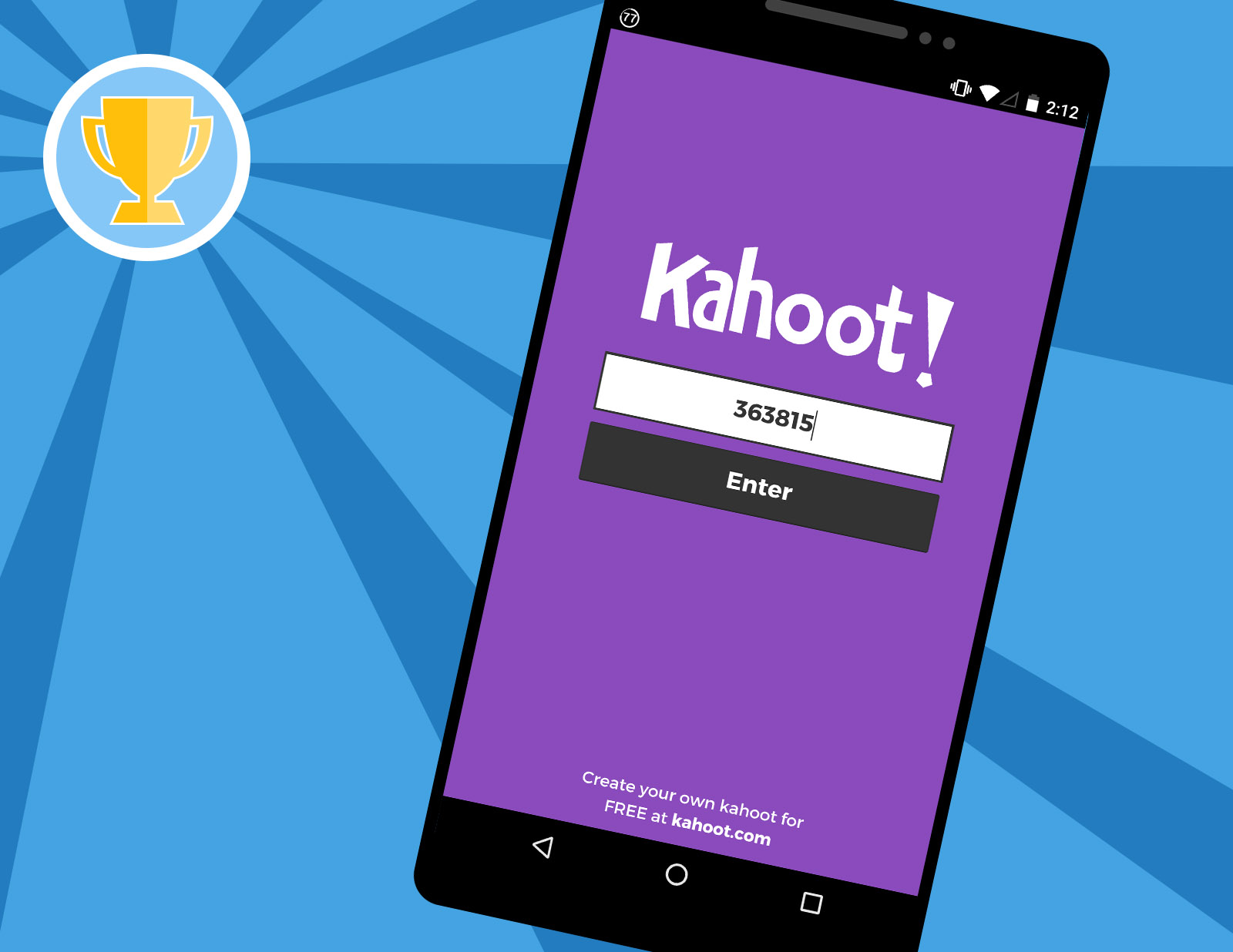
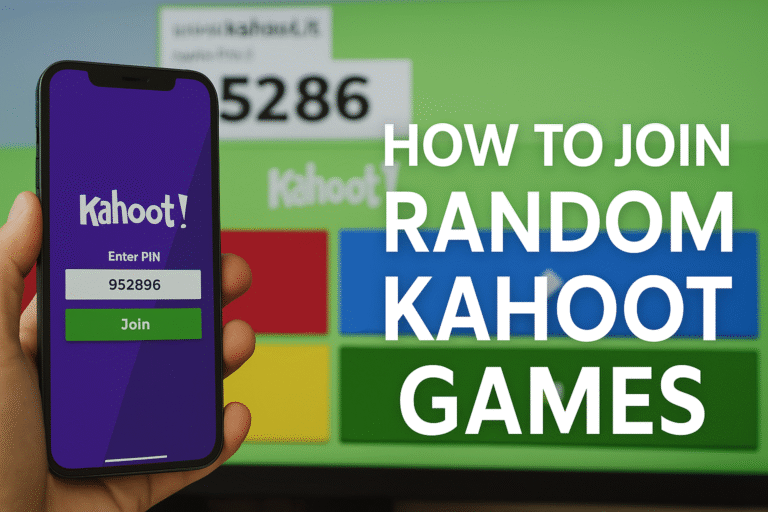
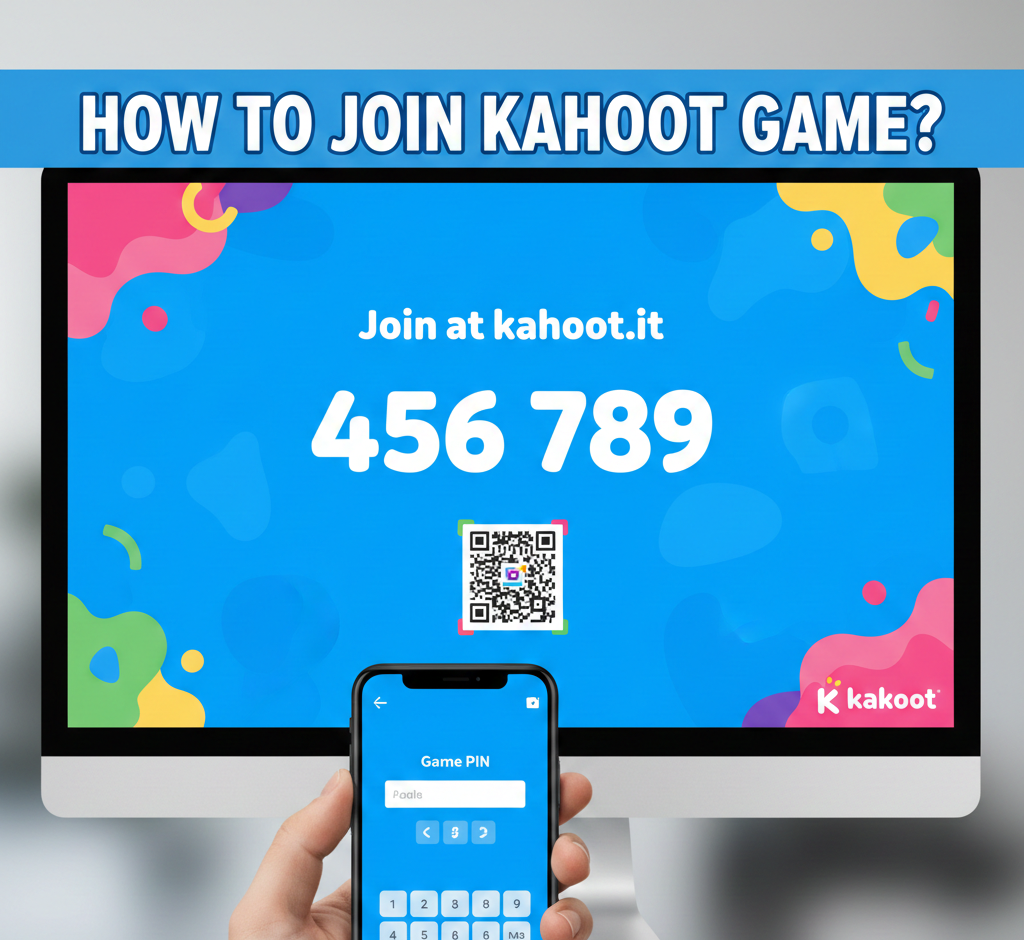
Players join your Kahoot game by going to kahoot.it on their smartphone, tablet, or computer, or by using the Kahoot app. You, as the host, will display a unique 6-digit Game PIN on your shared screen. Players simply enter this PIN into their device's browser or app and then choose a nickname. Once their nickname appears on your host screen, they're ready to play. It's a very straightforward process that connects everyone quickly.
What are the best settings for a casual game night?
For a casual game night, focus on settings that promote fun and inclusivity. Enable the 'Friendly Nickname Generator' to avoid inappropriate names and speed up entry. Keep question timers at a comfortable 20-30 seconds to allow thinking without too much pressure. Consider 'Randomize Order of Questions' for replayability. Ensure 'Game Music' is on for an engaging atmosphere. These adjustments create a relaxed yet lively environment, perfect for unwinding with friends and family without intense competition.
Can I host a Kahoot game if I don't have a premium account?
Yes, you can absolutely host a Kahoot game with a free basic account. The free version of Kahoot offers robust features, allowing you to create quizzes, access a vast library of public Kahoots, and host live games for participants. While premium accounts unlock additional question types, larger participant limits, and advanced features, the core functionality for an engaging social game is fully available without a subscription. This makes Kahoot an excellent budget-friendly option for social gaming.
How do I create engaging questions for my Kahoot?
To create engaging Kahoot questions, focus on clarity, relevance, and a touch of multimedia. Keep questions concise and ensure answer options are distinct, with one clear correct answer. Integrate images, GIFs, or short video clips to make questions visually stimulating and fun. Vary question difficulty and themes to maintain interest. Incorporate current trends or inside jokes for your specific audience. A well-crafted question inspires thought and often a good laugh, enhancing the overall game experience.
What kind of devices are compatible with Kahoot?
Kahoot is highly compatible with a wide range of devices, reflecting the mobile dominance in modern gaming. Players can join a Kahoot game using virtually any device with a web browser and internet access, including smartphones (iOS and Android), tablets, laptops, and desktop computers. The host typically uses a larger screen device (laptop, desktop, or tablet) to display the main game, while players use their personal devices to input answers. This broad compatibility makes Kahoot incredibly accessible for all participants.
Ever found yourself staring at a screen after a long day, juggling work, family, and the desire for some genuine fun and connection? You're not alone. The average US gamer, often around 36 years old, is expertly balancing life while still carving out time for relaxation and social play. With 87% of US gamers regularly engaging, often for 10+ hours a week, and mobile gaming dominating, finding accessible, engaging, and low-stress entertainment is key. That’s where Kahoot comes in, offering a perfect blend of fun, competition, and social interaction without the complex setup or heavy time commitment of other games. This guide is your shortcut to mastering how to start a Kahoot game, transforming your next social gathering or virtual hangout into an instant hit.
We understand the pain points: wanting to connect with friends or family but dreading complicated tech setups, dealing with performance glitches, or struggling to find activities that truly engage everyone. This article will walk you through everything you need to know, from creating your first account to hosting a dynamic game that keeps everyone laughing and learning. Forget the hype; we're focusing on practical solutions, smart tips, and making sure your Kahoot experience is seamless and satisfying, just like finding that perfect budget-friendly hardware upgrade or a game that fits your limited free time. Let's get your Kahoot game started right!
What Exactly is Kahoot and Why Should I Use It for My Next Game Night?
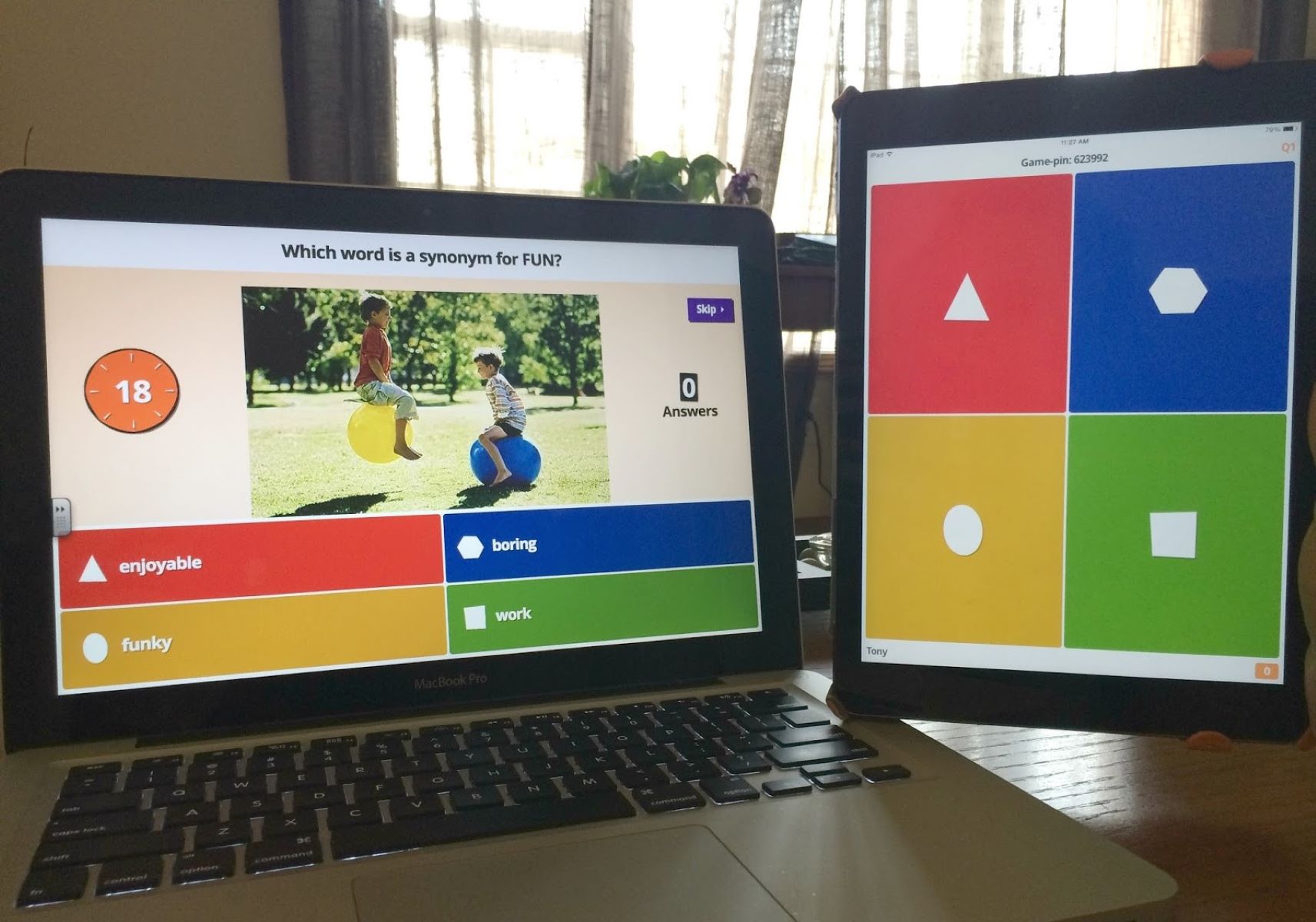
Kahoot is an online learning and gaming platform designed to create interactive quizzes, surveys, and discussions. It's a game-based learning tool that has exploded in popularity, transitioning from classrooms to living rooms and virtual meetups. Players answer questions on their own devices (smartphones, tablets, computers) while the questions are displayed on a shared screen. The speed and accuracy of answers determine scores, adding a thrilling competitive edge. Its intuitive interface and dynamic nature make it incredibly engaging for all ages.
For gamers who value social interaction and skill-building in a fun, relaxed setting, Kahoot is a fantastic choice. It fosters friendly competition, encourages quick thinking, and can be tailored to any topic. Whether you're unwinding with family, hosting a virtual party with friends across states, or even looking for a quick, brain-stimulating break during a busy week, Kahoot delivers. It's a low-barrier-to-entry social game that resonates with the current trend of casual, cooperative, and competitive play, especially on mobile devices.
How Do I Create a Kahoot Account and Get Started?
Getting started with Kahoot is straightforward and quick, even for those who are not tech-savvy. First, navigate to the official Kahoot website (kahoot.com) on your computer or download the Kahoot app on your mobile device. Look for the 'Sign Up' button, usually located in the top right corner.
You will be prompted to choose an account type: Teacher, Student, Personal, or Professional. For most casual gaming or social events, the 'Personal' option is usually the best fit, offering robust free features that cater to family and friends. After selecting your account type, you can sign up using an email address, or expedite the process by linking a Google, Microsoft, Apple, or Clever account. Follow the prompts to create a username and password. Once registered, you'll land on your Kahoot dashboard, ready to explore or create your first game.
What are the Essential Steps to Creating My First Kahoot Quiz?
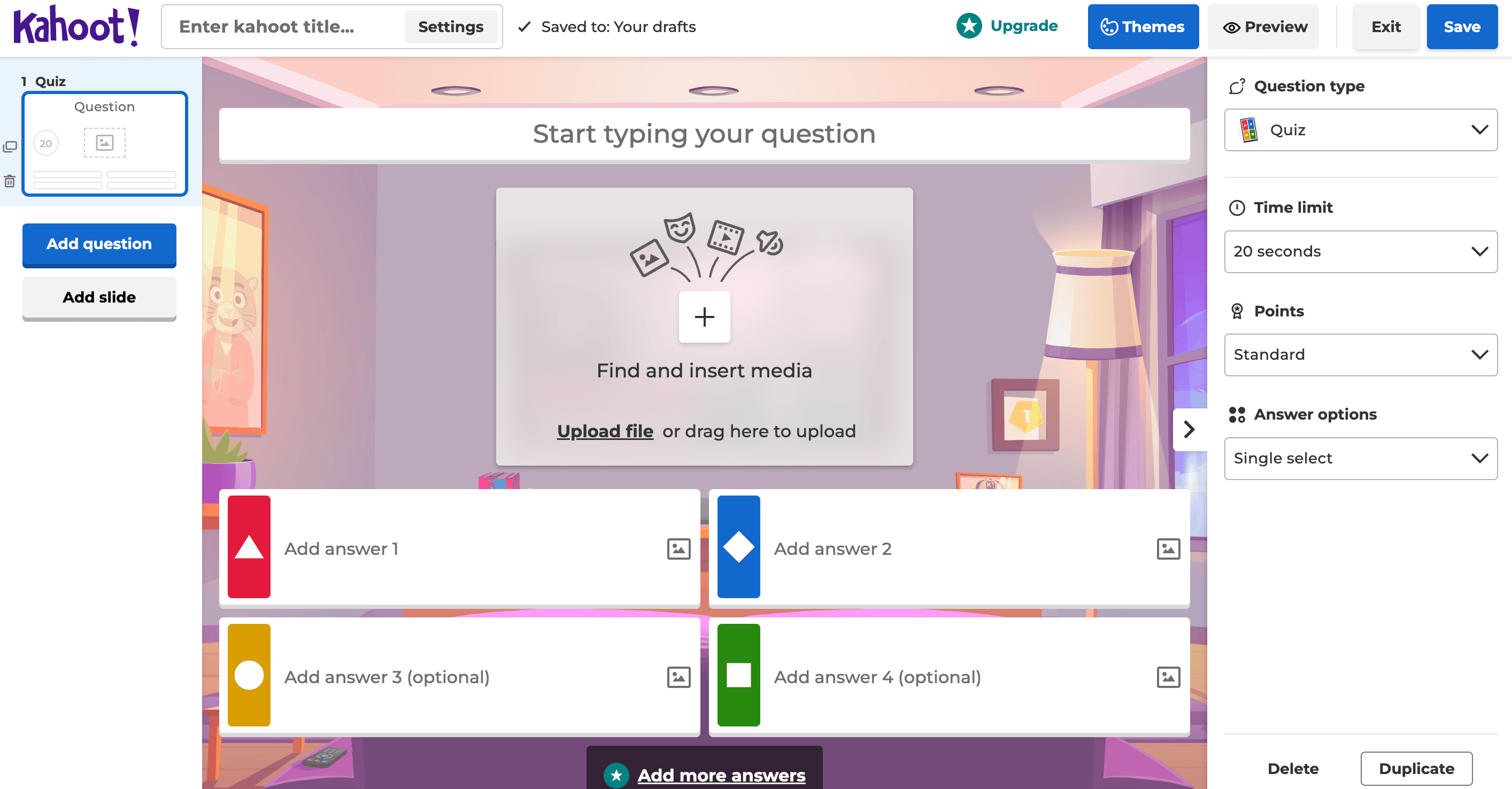
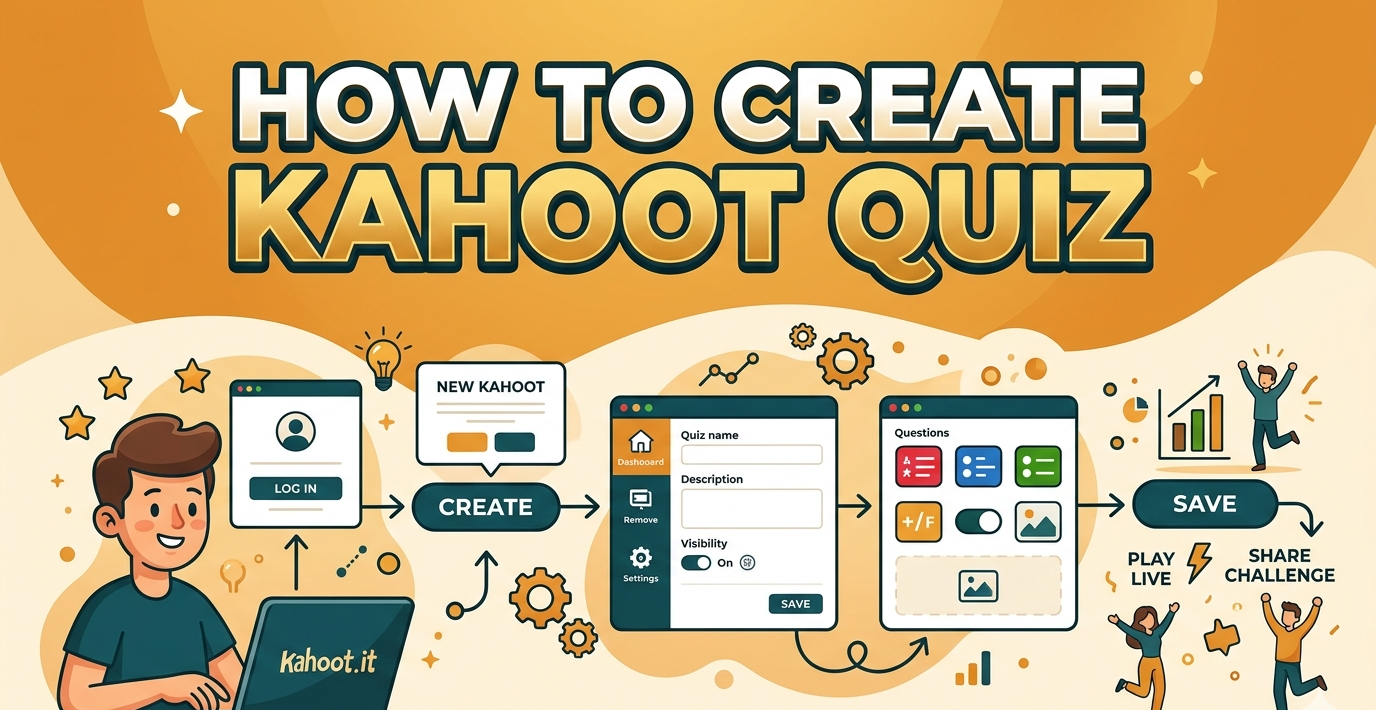
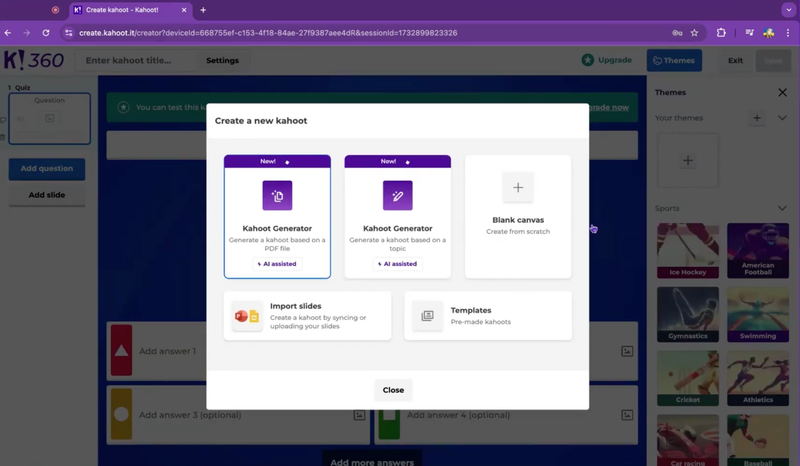
Creating your own Kahoot quiz allows for ultimate customization and engagement. From your Kahoot dashboard, locate and click the 'Create' button. This will open the Kahoot creator interface.
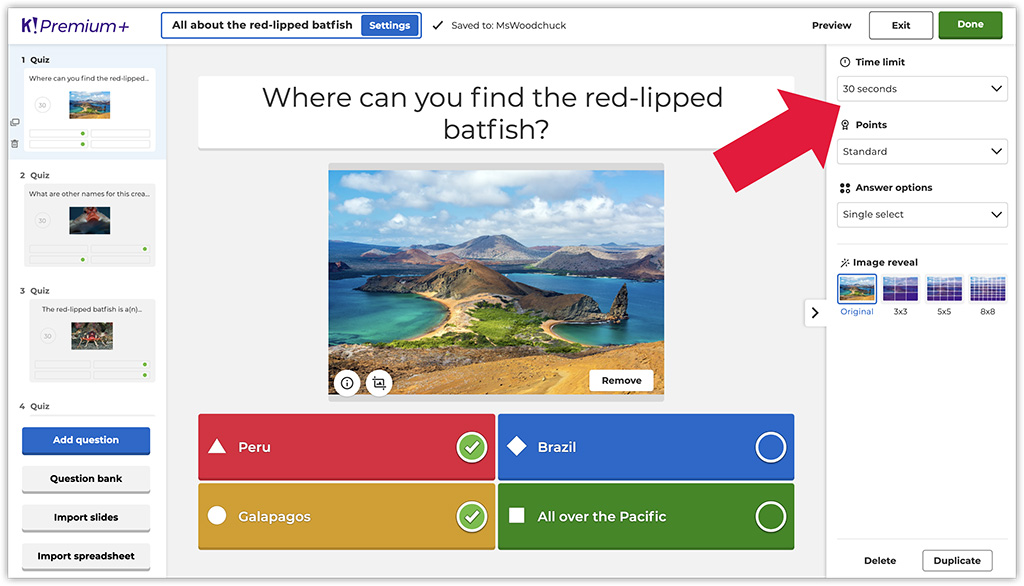
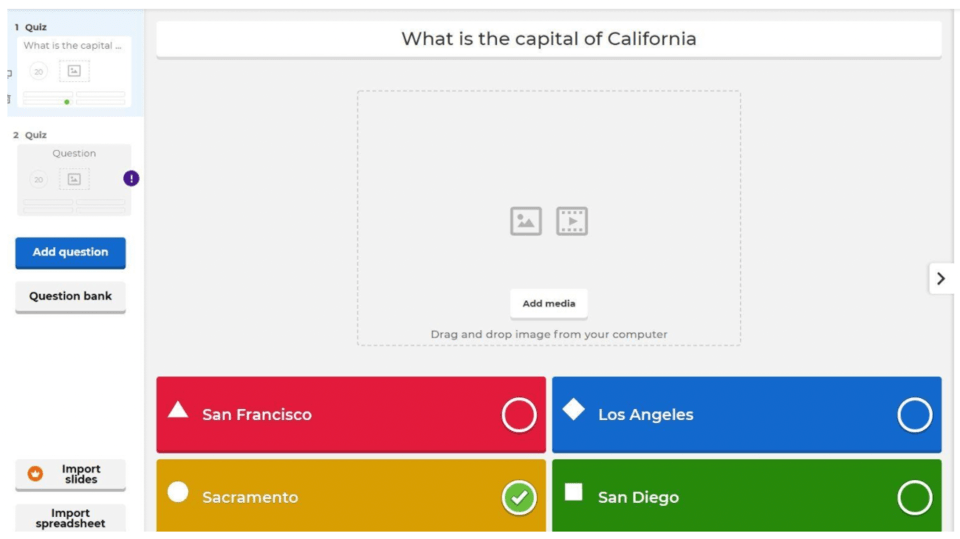
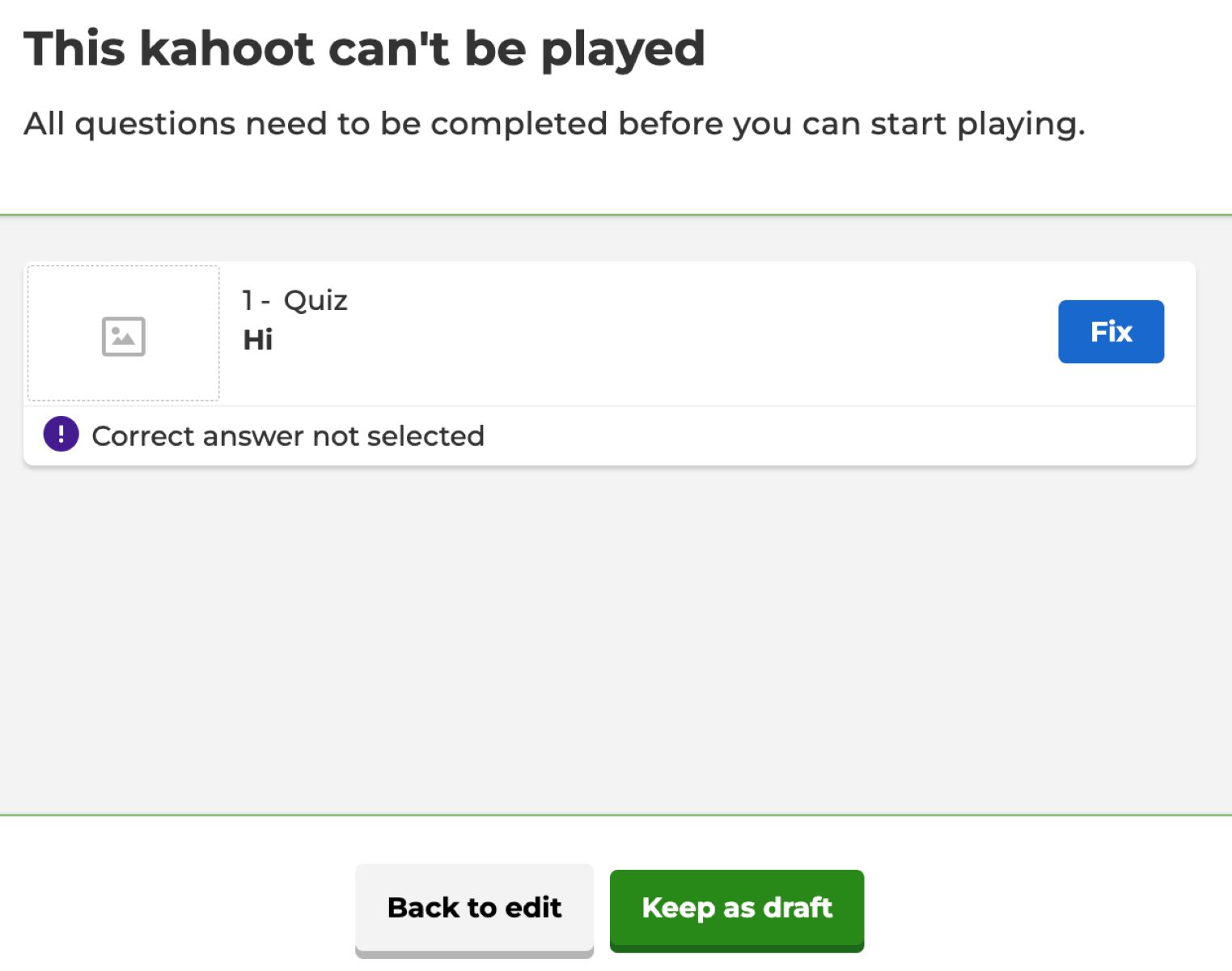
First, give your Kahoot a catchy title and add a description. You can also upload a cover image to make it visually appealing. Next, begin adding questions. Click 'Add question' and choose from various formats like 'Quiz' (multiple-choice), 'True or False', or 'Type Answer' (though some advanced types might require a premium subscription). For each question, type your query, add at least two answer options, and mark the correct answer. You can set a time limit for each question and assign points based on difficulty. Integrate images or even short video clips to make questions more dynamic and visually stimulating. Remember to save your Kahoot periodically as you build it. A well-crafted Kahoot keeps players engaged and leverages their knowledge effectively.
Can I Find Ready-Made Kahoots If I'm Short on Time?
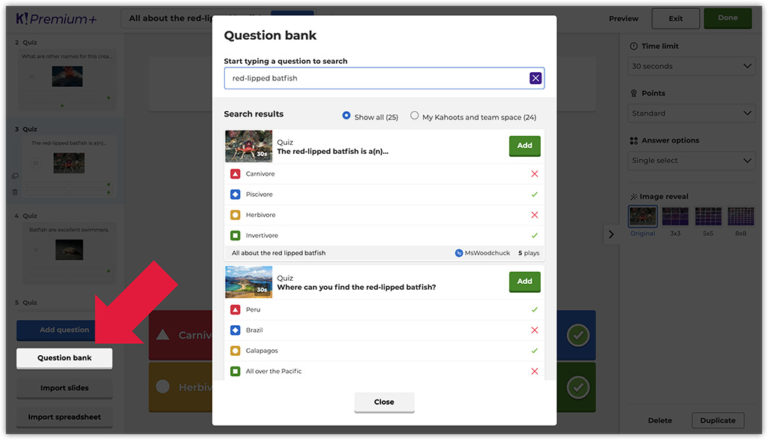
Absolutely! One of Kahoot's greatest strengths for busy gamers is its extensive library of public Kahoots. If you're short on time, perhaps after a demanding work week, or just looking for instant fun, using a pre-existing Kahoot is a lifesaver. From your Kahoot dashboard, click on 'Discover' in the top navigation bar. This section allows you to search for Kahoots on almost any topic imaginable.
You can filter by subject, difficulty, or even language. For instance, a quick search for 'Pop Culture Trivia' or '80s Music' will yield numerous results. Before hosting, it's a good idea to quickly 'Preview' the Kahoot to ensure the questions and answers are accurate and appropriate for your audience. You can even duplicate a public Kahoot and make minor edits to suit your specific needs, such as adjusting question timings or adding a personalized touch. This feature is invaluable for instantly kickstarting a game without the creative effort.
How Do I Host a Live Kahoot Game for My Friends or Family?
Once you've selected or created your Kahoot, hosting a live game is the next exciting step. On your Kahoot's summary page, click the 'Play' button, then select 'Host'. You'll be presented with two main game modes: 'Teach' (live, instructor-paced) or 'Assign' (self-paced challenge). For a classic, interactive game night, choose 'Teach'.
Kahoot will then generate a unique 6-digit Game PIN. This PIN is crucial for your players to join. Display this PIN prominently on a shared screen – whether it's projected in a room, shared via a screen-sharing tool like Zoom or Discord for virtual hangouts, or simply read aloud. Your friends and family will navigate to kahoot.it on their own devices or use the Kahoot app, enter the PIN, and then type in a nickname. Once everyone has joined and their nicknames appear on your host screen, click 'Start' to begin the game. The shared screen will display the questions and leaderboards, while players interact solely on their personal devices.
What's the Best Way to Manage Players and Ensure Everyone Joins Smoothly?
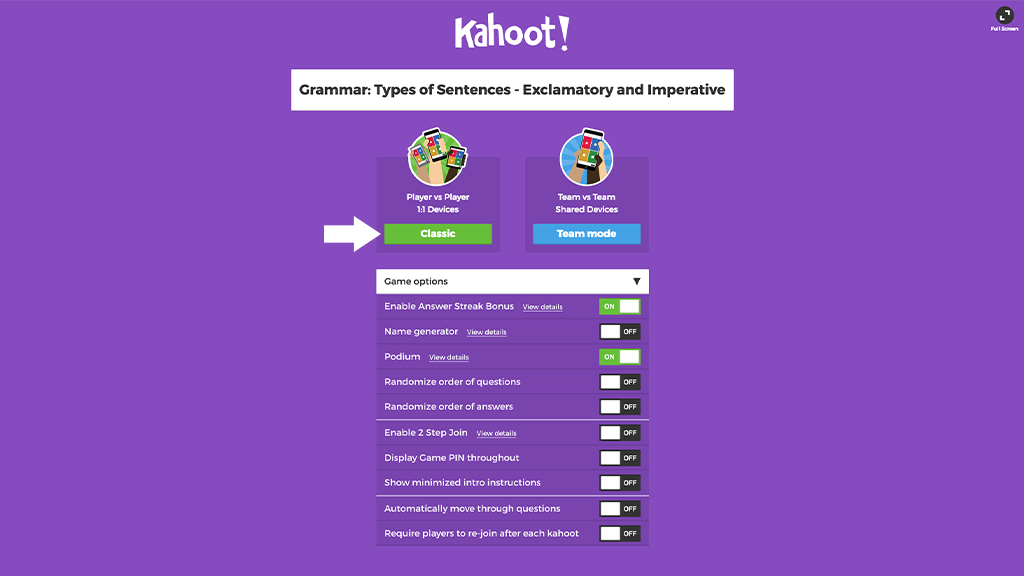
Ensuring a smooth player entry is key to a hassle-free Kahoot experience. When hosting, allow a few minutes for everyone to join after displaying the Game PIN. Encourage players to choose appropriate nicknames; as the host, you can click on a nickname to remove a player if needed. For larger groups, you might consider enabling the 'Nickname Generator' option in the game settings to prevent offensive names and speed up the joining process. This feature, found under 'Game Options' before starting, assigns random fun names.
For virtual sessions, clearly communicate the Kahoot.it website or app requirement and the Game PIN in your meeting chat or voice. Remind players that they will need two screens or to split their screen: one for the shared Kahoot host screen (questions) and one for their device (answering). A quick verbal walkthrough of the joining process can save a lot of headaches, especially for less experienced users. This proactive approach ensures everyone is on the same page and can participate without technical glitches, making the game inclusive and enjoyable for all.
How Can I Customize My Kahoot Game Settings for the Best Experience?
Before you hit 'Start', take a moment to explore the game settings, accessible via the gear icon or 'Game Options' on the host screen. These settings allow you to fine-tune the experience to match your audience and desired gameplay. Key options include 'Friendly Nickname Generator' (as mentioned), 'Randomize Order of Questions' and 'Randomize Order of Answers' for replayability, and 'Show Answer Streak' which adds an extra layer of challenge. 'Question Timer' is crucial – adjust it based on the complexity of your questions; for quick trivia, 10-20 seconds works well, while more thought-provoking questions might need 30-60 seconds.
You can also enable or disable 'Music' and 'Lobby Video' to control the atmosphere. For competitive groups, consider 'Two-Step Join' to add an extra layer of security, requiring players to enter a unique pattern after the PIN. These customizations empower you to create a tailored experience, whether it's a fast-paced battle of wits or a relaxed, collaborative learning session. Experimenting with these settings will help you discover what works best for your specific gaming community, aligning with their desire for optimized performance and fun.
Are There Advanced Tips for Making My Kahoot Games More Engaging and Competitive?
To elevate your Kahoot games beyond basic trivia, consider these advanced strategies. First, incorporate a variety of question types and media. Mix standard multiple-choice with True/False, and use images or short video clips to make questions visually stimulating and thought-provoking. For example, show a movie clip and ask players to identify the director, or display a gaming screenshot and ask for the game title. Second, leverage the 'Player vs. Player' mode (if available in your subscription) or create team modes to foster collaborative competition, aligning with trends in social gaming and esports viewing.
Third, for those who appreciate skill-building, design Kahoots around specific niches like retro game trivia, current esports facts, or even 'identify that game soundtrack'. This taps into gamers' intrinsic motivation for mastery. Fourth, inject humor and personality. Your question wording and answer options can be witty and fun, making the game more memorable. Finally, provide small, non-monetary incentives for winners, like bragging rights, choosing the next Kahoot theme, or a fun 'award' image. These elements transform a simple quiz into a truly dynamic and competitive event that resonates with the sophisticated tastes of modern gamers.
How Can I Use Kahoot Effectively for Different Social or Learning Scenarios?
Kahoot's versatility makes it suitable for a multitude of scenarios beyond just a casual quiz. For family game nights, create Kahoots about family history, inside jokes, or shared hobbies. This personal touch enhances connection and creates lasting memories. For virtual friend gatherings, try themed Kahoots based on popular culture, trending games, or even 'who knows the host best' quizzes. It's an excellent way to bridge distances and maintain social bonds, a key aspect of online communities like Discord.
If you're looking for a quick stress-relief activity during a work break, a short Kahoot can provide a mental refresh. For educators or team leaders, Kahoot can be used for interactive reviews, brainstorming sessions, or icebreakers. Its format makes complex topics digestible and engaging. Many gamers, averaging 36, appreciate tools that offer value for money and versatility, and Kahoot delivers by adapting to various needs—from pure fun to light learning, always in a social, engaging package.
What Troubleshooting Tips Can Help If My Kahoot Game Isn't Starting?
Encountering technical glitches can be frustrating, especially when everyone is ready to play. If your Kahoot game isn't starting smoothly, try these common troubleshooting steps. First, ensure you have a stable internet connection. A weak Wi-Fi signal is a frequent culprit for loading issues or disconnections. If you're hosting virtually, ask players to also check their internet stability.
Second, refresh your browser or restart the Kahoot app. Sometimes, a quick reset can resolve temporary software hiccups. Clear your browser's cache and cookies if the problem persists. Third, verify that all players are using the correct Game PIN and are connected to kahoot.it (or the app) on their devices. Often, a typo in the PIN can prevent entry. Fourth, temporarily disable any browser extensions or VPNs you might be running, as these can sometimes interfere with web-based applications. If you're experiencing issues with specific Kahoots, try hosting a different one to see if the problem lies with the quiz itself. Finally, check Kahoot's official status page or social media for any widespread service outages. Addressing these common pain points ensures your game gets off the ground and everyone can enjoy the fun.
What are the Best Practices for Creating Engaging Kahoot Questions?
Crafting compelling Kahoot questions involves clarity, variety, and a touch of fun. Keep questions concise and unambiguous. Use a mix of difficulty levels to keep all players engaged. Incorporate images, GIFs, or short videos to make questions more dynamic. Ensure your answer options are distinct, and include a plausible but incorrect 'distractor' answer to add challenge. Think about current trends and audience interests to make your questions relatable and exciting.
How Can I Make My Kahoot Game More Competitive for Experienced Gamers?
For a more competitive edge, customize game settings by reducing question timers and increasing the number of points per question. Use 'Type Answer' questions more frequently (if available) to challenge precise knowledge. Integrate questions requiring rapid recall of obscure facts or complex problem-solving. Consider creating themed Kahoots based on niche gaming lore, esports statistics, or speed-running records. Enabling 'Two-Step Join' adds a unique challenge during setup. Announce prizes, even if just bragging rights, to fuel the competitive spirit, similar to how esports motivate players.
Are There Any Security or Privacy Concerns When Hosting a Public Kahoot?
When hosting a public Kahoot, especially one visible to the wider community, be mindful of the content you share. Avoid including sensitive personal information in questions or answers. While players only join with nicknames, if you're hosting for a known group, encourage appropriate name choices. Kahoot's platform is generally secure, but exercising caution with public content is always wise. If you're concerned about unwanted participants, utilize the 'Two-Step Join' option in game settings, which adds a random pattern entry after the PIN, effectively limiting unauthorized access.
What Are the Best Ways to Share My Kahoot Game for Remote Play?
Sharing your Kahoot game for remote play is simple and effective. The primary method involves screen-sharing your host screen (which displays the Game PIN) through video conferencing tools like Zoom, Google Meet, or Discord. Players then join using their separate devices by navigating to kahoot.it and entering the shared PIN. Ensure your audio is clear so players can hear the game music and any commentary. For asynchronous play, you can 'Assign' a Kahoot challenge, which generates a link players can complete at their own pace within a set timeframe. This is ideal for different time zones or busy schedules, reflecting how modern gamers often balance social interaction with limited free time.
Starting a Kahoot game doesn't have to be a tech hurdle; it's an accessible path to instant fun and connection. We've covered everything from account creation to advanced hosting tips, all designed to help you, the busy gamer, maximize your entertainment. Whether you're seeking relaxation, social play, or a chance to test your skills, Kahoot provides a dynamic platform. Remember, the goal is effortless engagement and memorable experiences for everyone involved. What's your biggest gaming challenge when trying to organize social play? Comment below and let us know!
Simple step-by-step Kahoot setup guide Choosing or creating engaging Kahoots Hosting live games effortlessly Managing players and game settings Best practices for smooth gameplay Tips for maximizing participant interaction
35


How To Create Your Own Kahoot Quiz Game For Free In 2026 YouTube . How To Create A Kahoot Quiz Step By Step Tutorial 2025 Kahoot Quiz Builder 39e2f10438 . How To Get Good At Kahoot In A Short Time How To Create A Game On Kahoot . How To Create A Kahoot Game Step By Step Guide V4 728px Create A Kahoot Game Step 3 Version 2 . Kahoot Play Create Quizzes For Windows Pc Mac Free Download 2026 392x696bb

How To Create Kahoot Game LingoBright How To Create Kahoot Game 300x278 . Clever Portal Launch A Kahoot RtaImage. 0621 Pdf 0621 Pdf 8 320 . How To Make A Kahoot Game Step By Step Guide For Teachers 01 . How To Create Your Own Kahoot Quiz Game For Free 2026 Quick Easy



How To Create A Game On Kahoot Question Kahoot . How To Create A Kahoot Game Step By Step Guide V4 460px Create A Kahoot Game Step 4 Version 2 . How To Play A Game On Kahoot H Ng D N Chi Ti T Cho Ng I M I Tutorial Play Details Page . How To Join A Kahoot How To Join A Kahoot Game 6 Steps With Kahootquiz2 1 . How To Create A Kahoot Game Step By Step Guide Create A Kahoot Game Step 10

How To Make A Kahoot Quiz Game And Creative Screen Shot 2021 05 11 At 3.28.03 PM . Kahoot How To Create A Game In Kahoot. How To Create Your Own Kahoot Quiz Game For Free Create A Kahoot Game . Top Kahoot In 2026 How To Build Your Own Featured Image . How To Create A Game On Kahoot Robots Net What Is The Kahoot Game Pin 1693695582

How To Make A Kahoot Game Step By Step Guide For Teachers 03 768x440 . Kahoot Game Pin What It Is And How It Works How To Join Random Kahoot Games 768x512 . How To Create A Game On Kahoot Robots Net How To Publish Kahoot Draft 1699637858 . How To Join Kahoot Game LingoBright How To Join Kahoot Game . How To Create A Kahoot Game Step By Step Guide V4 460px Create A Kahoot Game Step 8




How To Join A Kahoot Game As A Player YouTube Hqdefault . Kahoot Review 2026 Features Pricing Better Atomi Kh Rv 1.webp. How To Make Kahoot Public 2026 Updated Tutorial YouTube . How To Create A Game On Kahoot Robots Net How To Make A Kahoot 1699644807 . How To Share A Kahoot Quiz Easily Step By Step Guide 2026 Wisebloghub Screenshot 2026 01 21 235435 780x470
How To Create Kahoot Quiz How To Create Kahoot Quiz . How To Create A Kahoot Quiz 2026 Or Use This Free Alternative Create Kahoot Style. Check Dd7ca41a 2dd5 44b6 A4c8 Compressed . How To Create A Game On Kahoot Robots Net How To Assign A Kahoot 1699638072 . How To Make A Kahoot Game Step By Step Guide For Teachers 04 702x402