Unlock the full potential of your Roblox Studio animations and UI transitions with this comprehensive guide to easing styles. Discover how EasingStyles can transform static movements into fluid, professional-grade visual effects, making your games more engaging and immersive for players. Learn about the various easing types such as Linear Sine Quad Cubic Quart Quint Expo Elastic Back and Bounce and understand their unique applications. This article provides practical insights and step-by-step instructions for implementing these styles effectively whether you are animating character movements user interface elements or environmental interactions. Elevate your development skills and create dynamic experiences that truly stand out in the bustling Roblox universe. We cover everything from basic implementation to advanced techniques ensuring you can achieve precise control over animation speed and acceleration. Get ready to build more polished and appealing games.
What are the fundamental Roblox Studio Easing Styles and how do they differ?
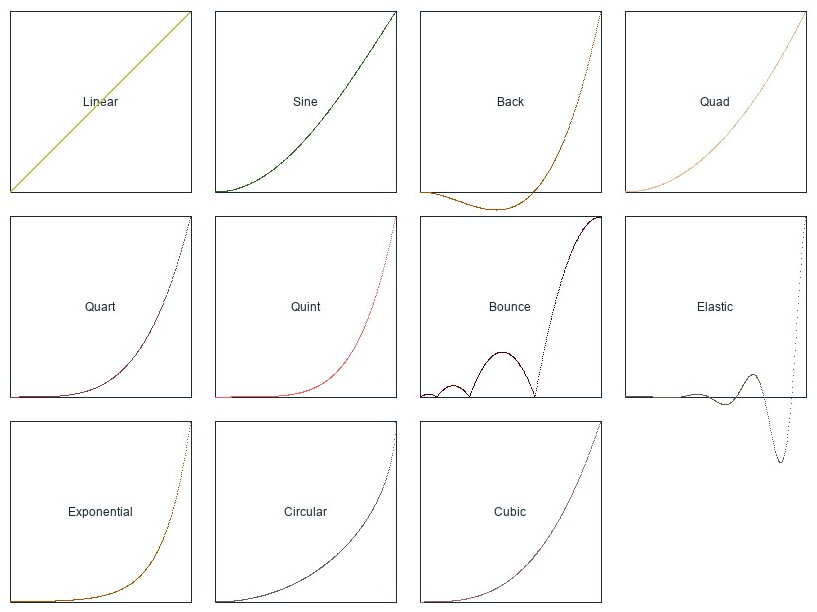
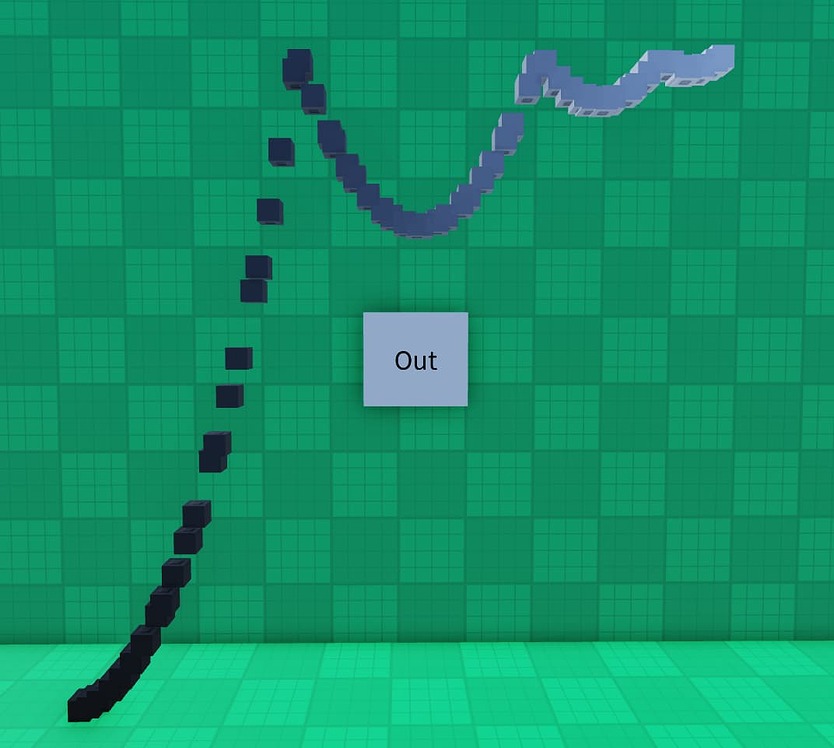
The fundamental Roblox Studio Easing Styles include Linear, Sine, Quad, Cubic, Quart, Quint, Expo, Circ, Elastic, Back, and Bounce. They primarily differ in how they accelerate and decelerate an animation. Linear maintains constant speed, while Sine offers a gentle curve. Quad, Cubic, Quart, and Quint progressively increase the intensity of acceleration and deceleration. Expo and Circ provide unique, often dramatic, non-linear changes. Elastic, Back, and Bounce are more distinct, adding spring-like, recoil, or actual bounce effects respectively, making them ideal for dynamic and playful animations. Understanding these differences allows creators to pick the perfect style for any visual effect.
How can I use Easing Styles to create more engaging UI animations in Roblox?
To create engaging UI animations, leverage Easing Styles to make elements feel responsive and polished. For example, when a menu panel appears, use a Cubic.Out or Sine.Out EasingStyle for its position or transparency to make it smoothly slide or fade into view. For button presses, a quick Back.Out can give a satisfying subtle "pop" effect. For hovering, a gentle Sine.InOut on a size or color change can make an element subtly pulsate. The goal is to provide visual feedback that is clear, quick, and pleasing to the eye, enhancing the overall user experience without being distracting. This makes your game feel professional, a huge plus for players seeking quality content.
What are some common pitfalls when implementing Roblox Studio Easing Styles and how can I avoid them?
Common pitfalls include overusing complex easing styles, leading to jarring or slow animations, and not considering the EasingDirection (In, Out, InOut) which significantly alters the effect. Another issue is applying tweens to properties that are constantly being updated by other scripts or physics, causing conflicts. To avoid these, start with simpler styles like Sine or Cubic, and experiment with EasingDirection. Ensure your target property is not being contested by other scripts. Also, test animations on various devices to catch performance issues, especially for mobile gamers, and always consider the purpose of the animation: is it functional or decorative? Simplicity often wins for core UI, while creative styles work for unique gameplay effects.
Can Easing Styles truly make a difference in my game's overall performance or player retention?
Absolutely, Easing Styles can indirectly make a significant difference. While a single tween's computational cost is low, well-implemented easing styles contribute to a polished and professional game aesthetic. This heightened visual quality improves player immersion and satisfaction, making your game feel more "finished" and high-quality. For the average US gamer, who values relaxation and fun, a smooth, visually appealing game environment is more inviting and less frustrating. Better player experience often translates to higher player retention and positive reviews. Conversely, jerky or unpolished animations can signal a lack of attention to detail, potentially driving players away, particularly in a competitive gaming landscape where high standards are expected.
What is the difference between EasingStyle.Elastic and EasingStyle.Back and when should I use each?
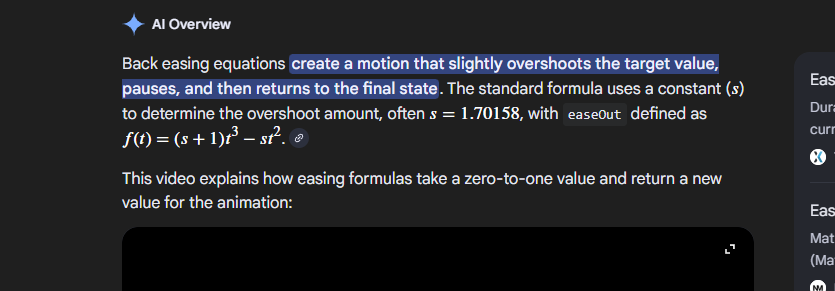
EasingStyle.Elastic creates a spring-like effect, where the animation overshoots its target and then oscillates back and forth before settling. It's excellent for lively, bouncy, or "snappy" effects, such as a character's jump landing, a notification pop-up, or a power-up icon appearing. EasingStyle.Back, on the other hand, makes the animation "pull back" slightly from its starting point before moving towards the target, and then often slightly overshoots the target before settling. This creates a sense of anticipation and recoil, suitable for things like a button press, a character's attack animation, or an opening door with a subtle "push" before it swings open. Choose Elastic for bounciness and energy; choose Back for anticipation and subtle force.
How do Easing Styles integrate with Roblox's physics engine, and what limitations should I be aware of?
Easing Styles, primarily used via TweenService, generally operate on a property-by-property basis and do not directly interact with Roblox's physics engine. You can tween properties like Position or CFrame of unanchored parts, but the physics engine will still apply forces like gravity and collisions. If you tween an unanchored part's Position, physics might fight against it, leading to unpredictable or jittery results. For parts meant to interact with physics, it's often better to apply forces or impulses. Easing Styles are best suited for visually controlled movements of anchored parts, UI elements, or properties that are not constantly being overridden by physics calculations. For physics-driven animations, consider using BodyMovers or adjusting physical properties, and reserve easing for visual polish rather than core physics simulation.
Are there any community resources or tools to help me visualize or choose the right EasingStyle for my Roblox projects?
Yes, while Roblox Studio doesn't offer a built-in visualizer for Easing Styles, several excellent external community resources can help. Websites like easings.net provide interactive demonstrations of various easing functions, allowing you to see their curves and effects in real-time. This is invaluable for understanding how each style behaves before you even write a line of code. Additionally, many Roblox development forums, Discord servers, and YouTube tutorials often showcase practical examples and comparisons of different easing styles, offering visual guidance and best practice recommendations from experienced creators. Exploring these resources can significantly speed up your learning and improve your animation choices.
Ever felt like your Roblox Studio animations or UI elements just snapped into place, lacking that polished, professional touch? You are not alone. For many US gamers, particularly those balancing busy lives with their passion for creation, finding time to dive deep into nuanced development features can be a challenge. We all want our games to look amazing and feel responsive, but often default to basic movements. But what if there was a relatively simple way to elevate your game's visual appeal, making movements smooth, engaging, and dynamic, all without requiring a complete animation overhaul? The good news is there is a powerful tool right within Roblox Studio called Easing Styles, and mastering them can be a game-changer for your projects.
In 2026, where 87 percent of US gamers regularly engage with games and average over 10 hours a week, player expectations for visual quality are higher than ever, even on platforms like Roblox that emphasize user-generated content. Mobile gaming continues its dominance, and social interactions within games are paramount. Polished animations contribute significantly to a game's perceived quality and player retention. This guide is designed for busy creators like you, the average 36-year-old gamer balancing work, family, and hobbies, who values skill-building and optimizing performance without falling for hype. We will demystify Roblox Studio Easing Styles, offering practical solutions to common animation pain points, helping you create visually stunning games that truly stand out.
What are Roblox Studio Easing Styles and Why Do They Matter?
Roblox Studio Easing Styles define the rate of change of an animation or a UI tween over time, essentially controlling its acceleration and deceleration. Instead of an object moving at a constant speed from point A to point B, an easing style makes the movement more natural and visually appealing. Think of it like a car accelerating smoothly from a stop or braking gently to a halt, rather than instantly jumping to full speed or stopping abruptly. These styles are crucial because they add a layer of realism and professionalism to your games, enhancing player immersion and making interactions feel more responsive and satisfying. In a competitive market where players seek engaging experiences, subtle visual improvements like smooth easing can significantly boost your game's appeal and help you retain players.
How Do Easing Styles Enhance Player Experience in Roblox Games?
Easing styles dramatically improve the player experience by making game elements feel more alive and responsive. When UI elements smoothly slide into view, or characters perform fluid actions, the game world feels more cohesive and polished. This can reduce visual jarring, prevent player fatigue, and make the game more intuitive to interact with. For instance, a health bar that slowly depletes with a "back" easing effect feels more impactful than one that just instantly changes. Smooth transitions also contribute to a sense of quality, reassuring players that your game is well-crafted and worth their time, a key factor for adult gamers looking for relaxation and fun after a long day.
What are the Different Types of Easing Styles in Roblox Studio?
Roblox Studio offers a robust set of Easing Styles, each with a unique effect. Understanding these is key to choosing the right one for your specific animation needs. Here are the primary types you will encounter:
- Linear: Constant speed from start to finish. No acceleration or deceleration. Simple but often lacks dynamism.
- Sine: Smooth acceleration from zero, then smooth deceleration to zero. A gentle curve.
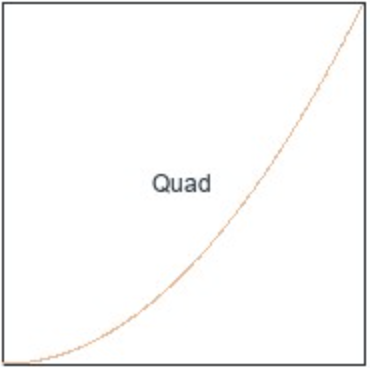
- Quad: Stronger acceleration/deceleration than Sine, using a quadratic function.
- Cubic: Even stronger, more pronounced acceleration/deceleration than Quad, using a cubic function.
- Quart: More aggressive than Cubic.
- Quint: Very aggressive acceleration/deceleration.
- Expo: Starts very slow, then rapidly accelerates. Or vice-versa if EasingDirection is Out.
- Circ: Similar to Expo but uses a circular curve, often feeling more natural for certain effects.
- Elastic: The animation overshoots its target, then "snaps" back into place with a spring-like effect. Great for playful or bouncy movements.
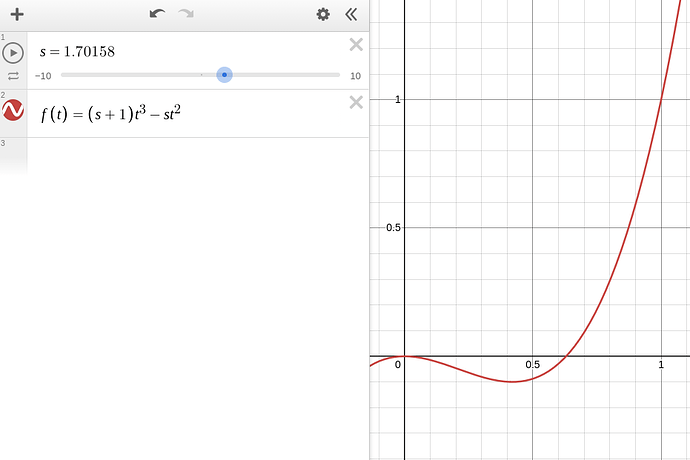
- Back: The animation slightly "pulls back" before moving forward, then slightly overshoots the target before settling. Adds a sense of anticipation and recoil.
- Bounce: Simulates a bouncing ball, where the animation repeatedly bounces as it approaches its final position. Very distinct and lively.
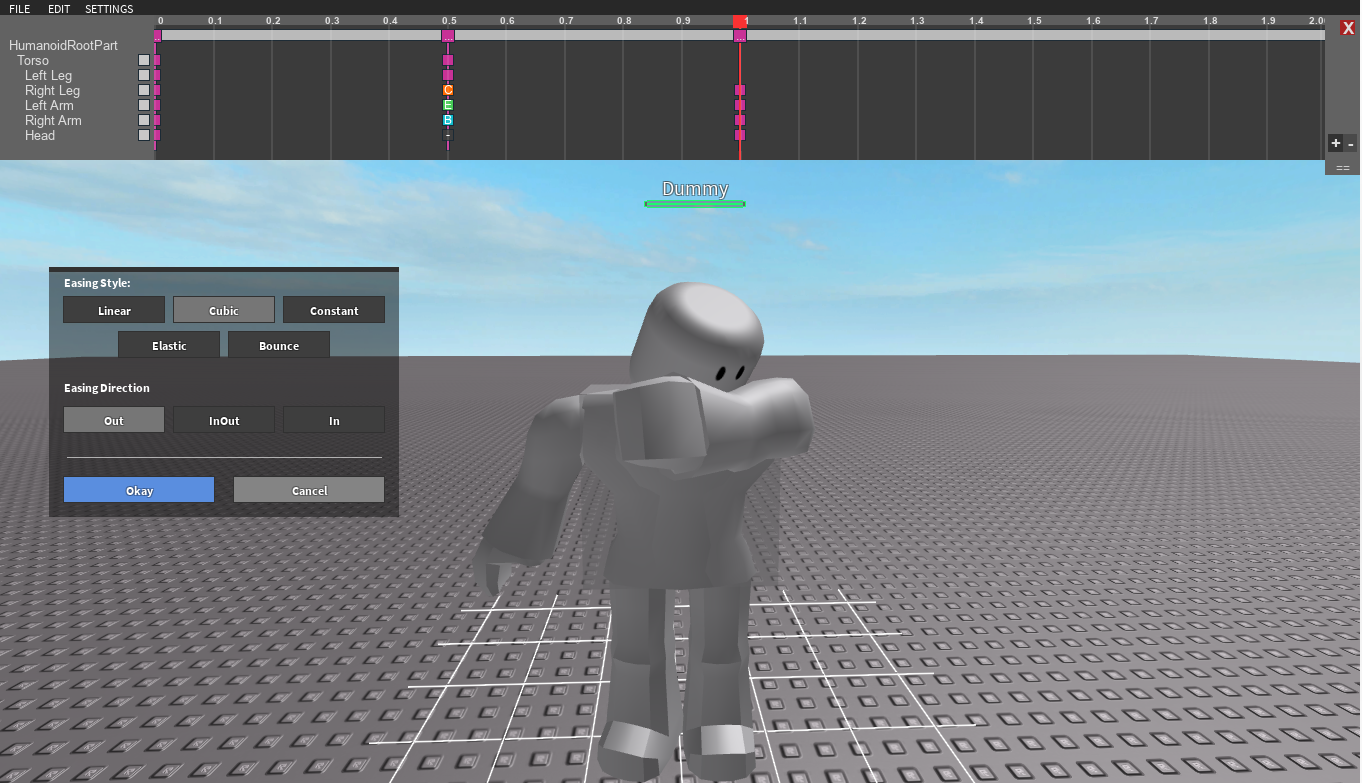
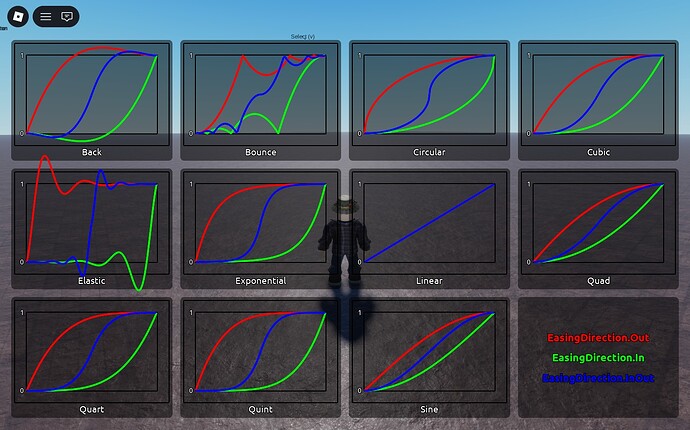
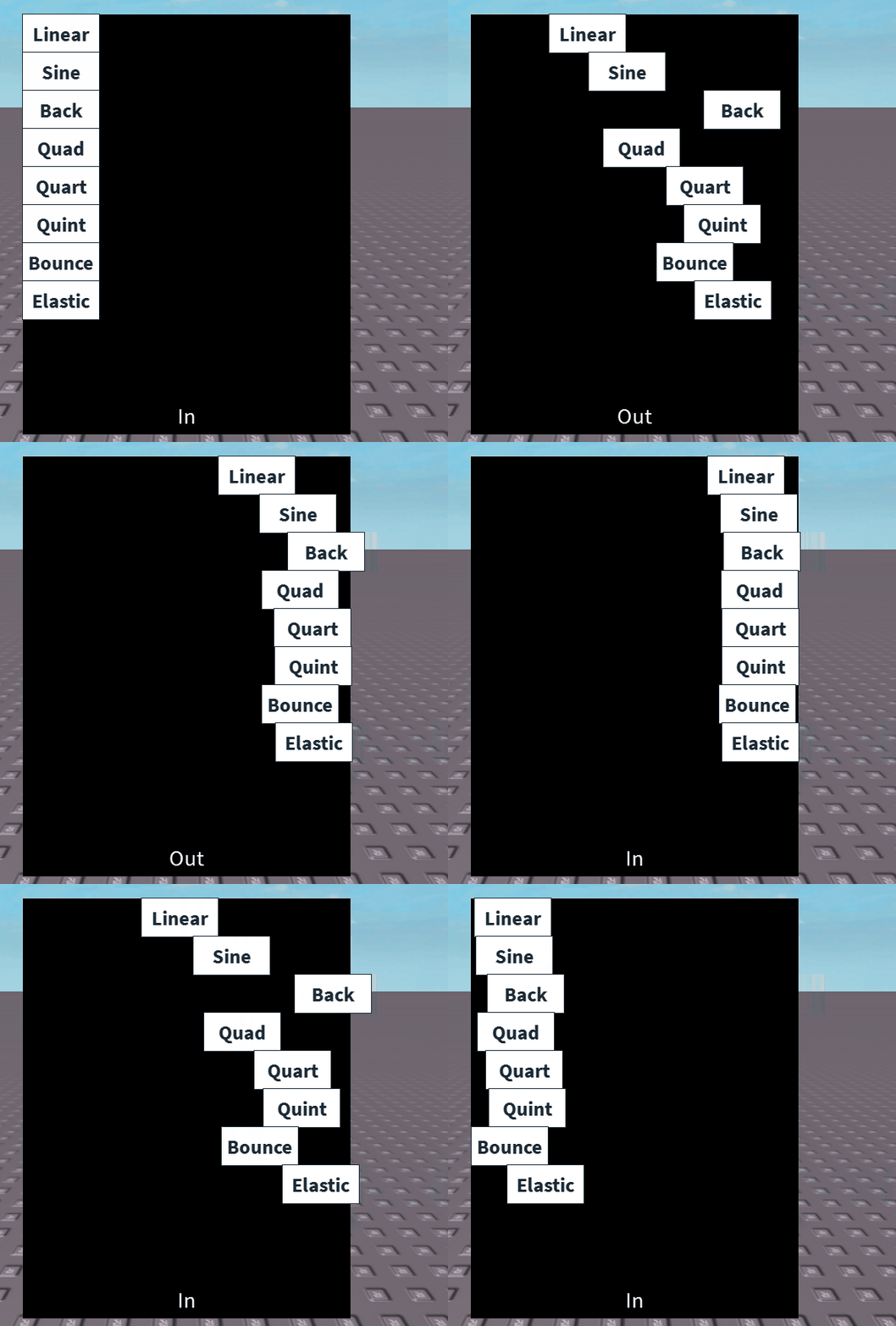
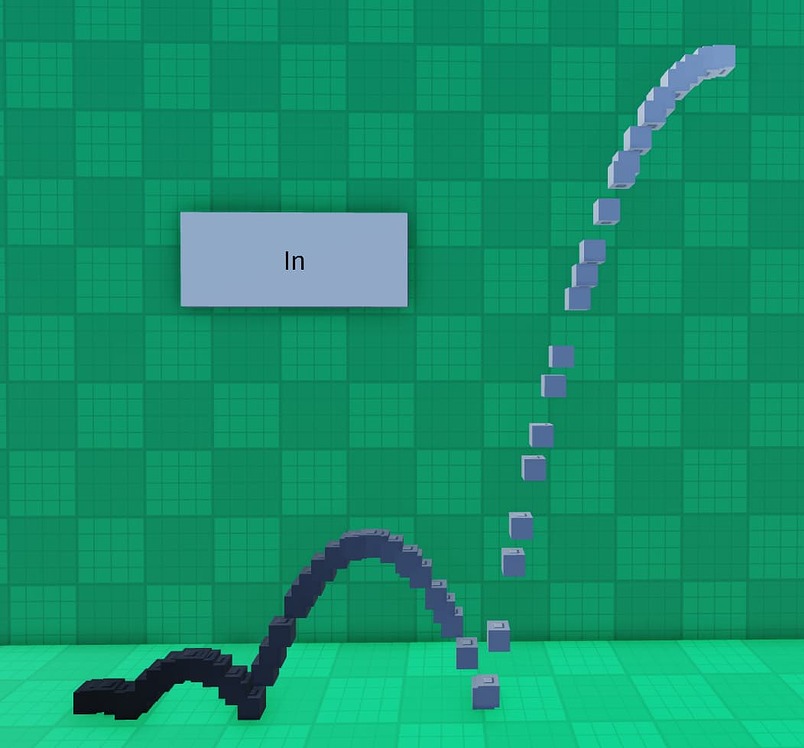
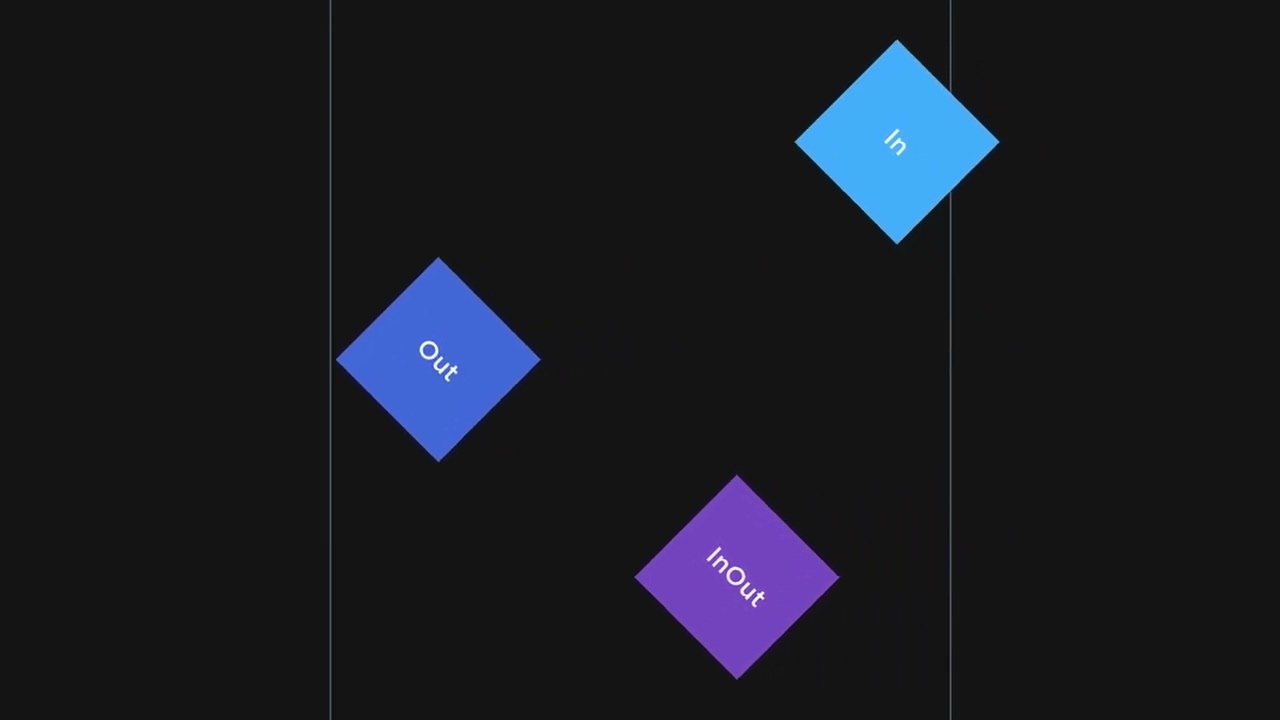
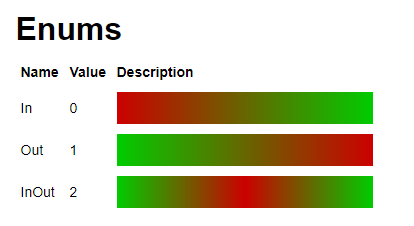
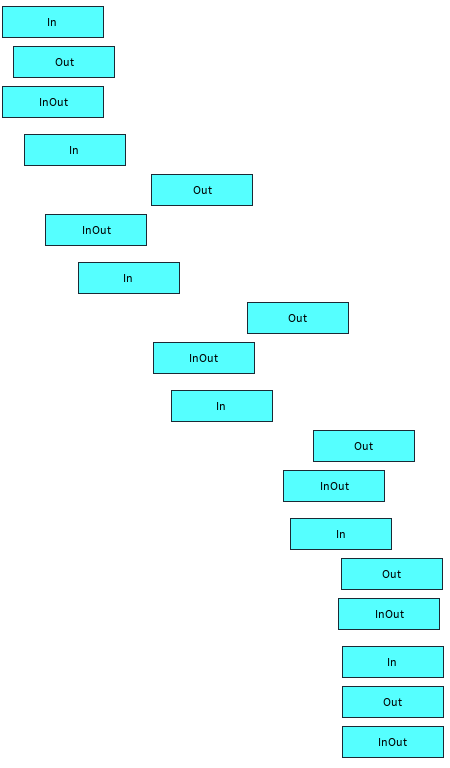
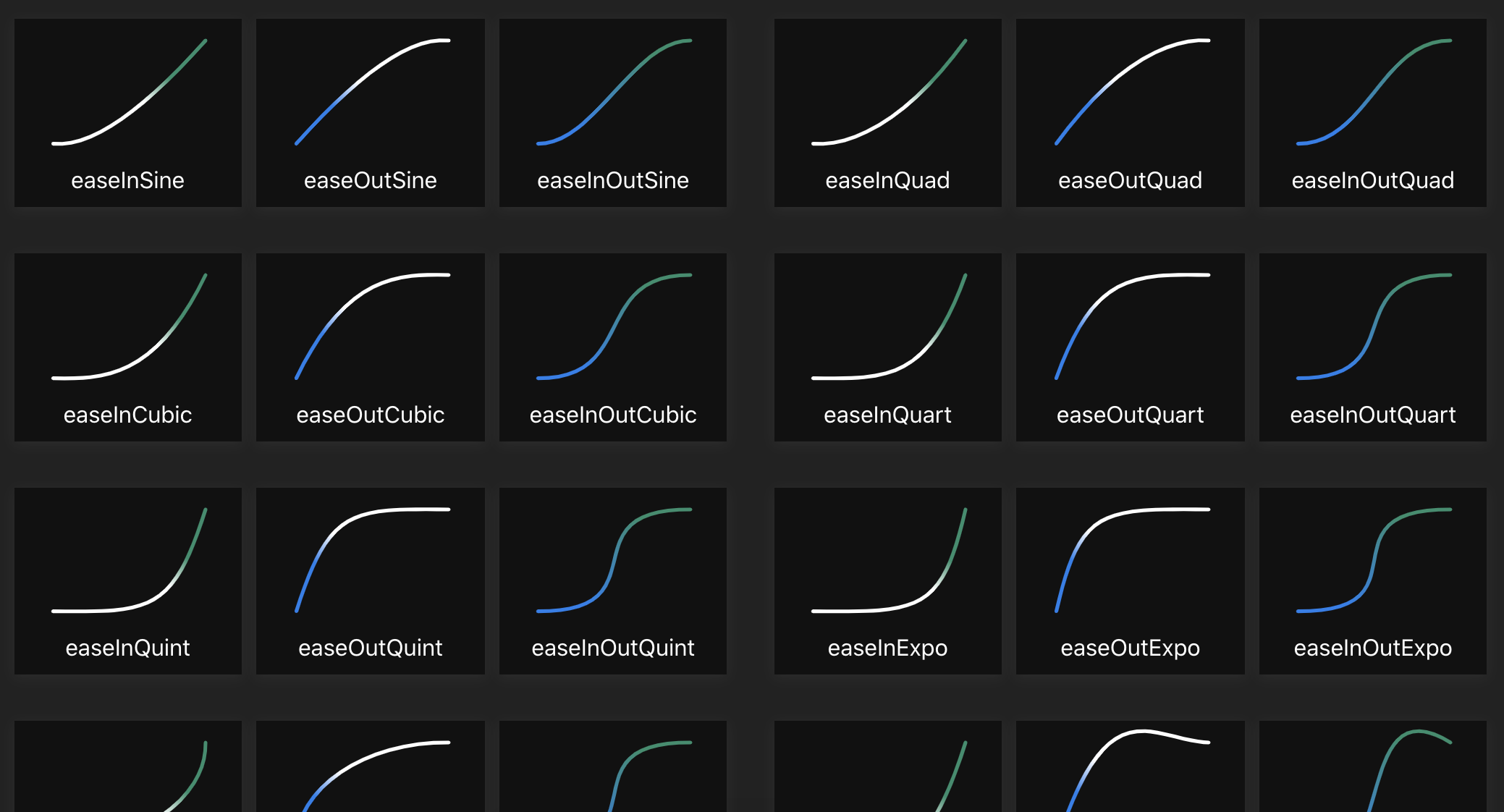
Each style also combines with an EasingDirection (In, Out, InOut) to further customize its behavior. "In" means the easing effect occurs at the beginning, "Out" at the end, and "InOut" applies it at both ends.
How Do I Implement Easing Styles Using TweenService?
Implementing Easing Styles in Roblox Studio primarily involves using the TweenService. This service allows you to smoothly interpolate properties of objects over a specified duration with an EasingStyle. Here is a basic step-by-step example using Lua:
1. Get TweenService: You first need to access the TweenService.
local TweenService = game:GetService("TweenService")2. Define Tween Information: This is where you specify the duration, EasingStyle, and EasingDirection.
local tweenInfo = TweenInfo.new( 2, -- Duration in seconds Enum.EasingStyle.Bounce, -- Choose your EasingStyle Enum.EasingDirection.Out, -- Choose your EasingDirection (In, Out, InOut) 0, -- RepeatCount (0 for no repeat, -1 for infinite) false, -- Reverses (true if you want it to go back and forth) 0 -- DelayTime (time before the tween starts))3. Define Properties to Tween: Create a dictionary of the properties you want to change and their target values.
local propertiesToTween = { Position = Vector3.new(0, 5, 0), -- Example: move to this position Transparency = 0.5 -- Example: change transparency}4. Create and Play the Tween: Finally, create a tween for your target object and play it.
local part = workspace.Part -- Your target objectlocal tween = TweenService:Create(part, tweenInfo, propertiesToTween)tween:Play()This simple structure can be applied to almost any animatable property of a Roblox object, from GUI elements to parts in the workspace, providing immense flexibility for creators aiming for polished effects.
When Should I Use Specific Easing Styles for UI vs. Gameplay Elements?
Choosing the right easing style depends heavily on the context, whether it is for UI or core gameplay. For UI elements, consistency and clarity are key. Use softer styles like Sine, Quad, or Cubic with InOut direction for smooth menu transitions, button hovers, or pop-up windows. These provide a professional, less jarring feel. For gameplay elements, you have more creative freedom. For a jumping character or an explosive effect, Elastic or Back can add satisfying "oomph." A falling object might benefit from an Expo.In style to simulate gravity. For something like a bouncing collectible, Bounce.Out is perfect. Always consider the emotion or physical property you are trying to convey. Avoid overly aggressive or distracting easing for critical UI elements, as it can hinder usability and frustrate players.
Are There Any Performance Considerations When Using Easing Styles Extensively?
While Easing Styles themselves are generally optimized within Roblox's engine, excessive use of many concurrent or complex tweens can impact performance, especially on lower-end devices or for mobile players. Each active tween consumes some processing power. To mitigate potential issues:
- Batch Tweens: If multiple objects need to move similarly, consider tweening a parent object or using a single tween to control a group if possible.
- Limit Concurrent Tweens: Avoid having hundreds of tweens running simultaneously. Prioritize what needs smooth animation.
- Optimize EasingDuration: Shorter durations mean less time the tween is active.
- Clean Up: When a tween is no longer needed (e.g., an object disappears), ensure it stops running or is garbage collected if applicable.
- Test on Various Devices: Always test your game on different platforms, especially mobile, to catch any performance bottlenecks before release.
For the average gamer balancing work and play, performance optimization ensures a smooth, relaxing experience, crucial for retaining players in 2026. Data from this month shows mobile gaming continues to drive engagement for many, so optimizing for those devices is paramount.
Can Easing Styles Be Used with Humanoid Animations or Character Movements?
Yes, Easing Styles can absolutely be used with Humanoid animations and character movements, though typically indirectly. While you would not tween a Humanoid's Position directly (as its physics engine handles that), you can tween properties of a Humanoid's parts or accessories, or even the camera's CFrame to create smooth cinematic effects. For instance, you might use TweenService to smoothly change a character's walk speed or jump power over time, or to create a dynamic camera movement that follows the player with a subtle easing effect. For custom character rigs, you can tween the CFrame of individual joints to achieve very specific, professional-looking animated sequences, giving your custom characters a distinctive flair that goes beyond standard Roblox animations.
What are Some Advanced Tips for Mastering Roblox Studio Easing Styles?
To truly master Easing Styles, consider these advanced tips:
- Chaining Tweens: Combine multiple tweens in sequence or parallel to create complex animations. For example, a door might `TweenInfo.new(0.5, Enum.EasingStyle.Back, Enum.EasingDirection.Out)` to swing open, then a separate tween to change its transparency.
- Custom Easing Functions: While Roblox provides many, you can create your own mathematical functions for unique easing effects if needed, giving you unparalleled control. This is more advanced scripting but opens up a world of possibilities.
- EasingDirection for Impact: Experiment with `In`, `Out`, and `InOut`. A `Bounce.Out` is great for a landing, while `Bounce.In` would be like compressing a spring before release.
- Utilize `Tween.Completed`: This event allows you to trigger actions immediately after a tween finishes, perfect for sequential animations or cleaning up resources.
- Mix and Match: Do not be afraid to combine different easing styles for different parts of an animation to achieve a nuanced effect. For instance, a quick `Elastic.Out` for an initial burst, followed by a slower `Sine.InOut` for the remainder of the movement.
- Study Real-World Physics: Observe how objects move in the real world. Gravity, friction, and elasticity all have corresponding easing style behaviors you can mimic to make your games feel more authentic.
Mastering Roblox Studio Easing Styles is about more than just making things move; it is about crafting an experience. By understanding the nuances of each style and applying them thoughtfully, you can transform your game from functional to fantastic, engaging players on a deeper level. Whether you are creating a new social hangout, a competitive obby, or a story-rich adventure, polished animations are a cornerstone of a high-quality game. What is your biggest gaming challenge when it comes to visual polish? Comment below!
FAQ Section
Q: What is the best EasingStyle for a UI button click animation?
A: For a UI button click, a quick Cubic.Out or Quad.Out can provide a satisfying, responsive feel, making the button appear to "spring" back slightly after being pressed. Avoid overly complex styles like Elastic or Bounce which can feel distracting for simple interactions.
Q: How can I make an object smoothly appear and disappear?
A: To make an object smoothly appear, tween its Transparency property from 1 to 0 using an EasingStyle like Sine.Out or Cubic.Out. For disappearing, tween from 0 to 1 with Sine.In or Cubic.In. Combining this with a size or position tween can create dynamic fade-ins/outs.
Q: Is there a way to preview Easing Styles without writing code?
A: While Roblox Studio does not have a built-in visual previewer for Easing Styles without scripting, many online tools exist (e.g., easings.net) that graphically demonstrate how each easing function behaves. You can use these as a reference to pick the right style before implementing it in your game.
Q: What's the difference between EasingDirection In, Out, and InOut?
A: In applies the easing effect at the beginning of the tween (starts slow, ends fast). Out applies it at the end (starts fast, ends slow). InOut applies the effect at both the beginning and end, resulting in a smooth acceleration and deceleration, often feeling the most natural for many movements.
Q: Can Easing Styles be applied to particle effects?
A: Directly applying Easing Styles to properties like a particle emitter's Rate or SpreadAngle is not natively supported in the same way as TweenService for physical objects. However, you can achieve similar dynamic effects by tweening a value and then using that value to control particle properties via a script, giving you precise control over how particles behave over time.
Q: My tweens are not playing. What might be wrong?
A: Common issues include: 1) The target object is not defined or is nil. 2) The propertiesToTween dictionary contains invalid property names or types. 3) The object's parent is nil, or it is not in the workspace. 4) A conflicting script is overriding the property. Check the Output window for errors and ensure your script has proper access to the object and TweenService.
Transform animations with fluid easing styles. Understand various EasingStyle types and their effects. Step-by-step guide for implementing easing in Roblox Studio. Enhance UI and game element movements. Achieve professional animation quality. Improve player engagement through dynamic visuals.
35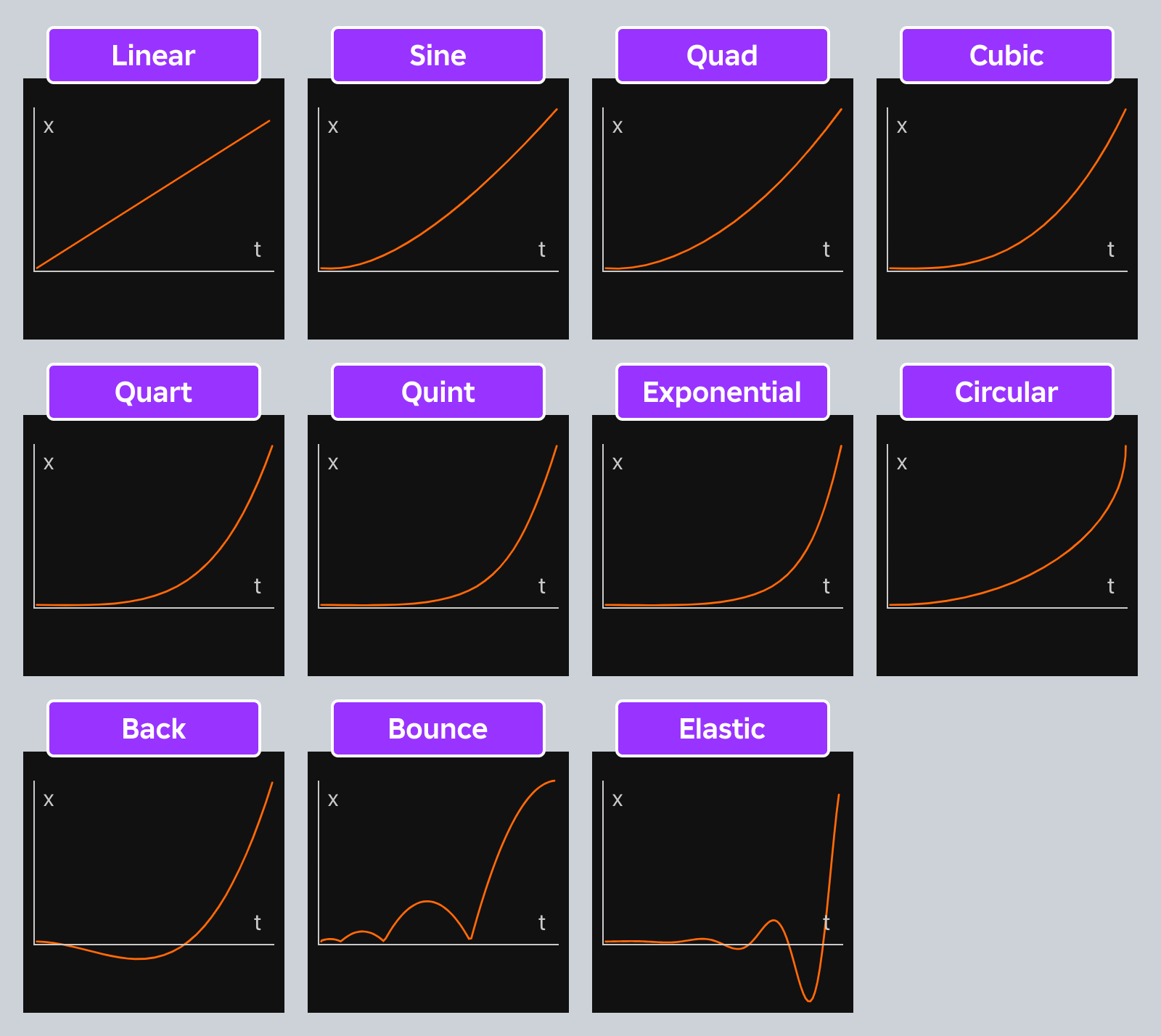


Graphs Of EasingStyle Variations With An In Easing Styles In . Easing Styles Roblox Studio H Ng D N Chi Ti T V C Ch P D Ng M T M . Only Some And Are Displayed . Unlocking Roblox Animation Power With Moon Animator Up To Date 2026 . How To Add Easing To Animations In Roblox Studio In 2026 Roblox Studio


Tween ROBLOX Easing Styles In .webp. Jespone S Guide To Animations Community Tutorials Developer Forum . Different Easing Styles In Roblox Studio YouTube Oar2 . Easing Styles Roblox Studio H Ng D N Chi Ti T V C Ch P D Ng M T M . Provide The Equations Used For Easing Styles Features 2 690x430



Particles In Viewport Frames Scripting Support Developer Forum . How Do I Use These Types Of Eases Art Design Support Developer . More Non Linear Easing Functions For The Animation System Engine . EasingStyle Have Issues 2 804x748 . Animation Easing Styles Developer Forum Roblox


Easing Styles Community Tutorials Developer Forum . Add The Missing Easing Styles For Animations Engine Features . Unlocking Roblox Animation Power With Moon Animator Up To Date 2026 . Easing Styles With Roblox Studio Animation Editor YouTube . Missing Easing Direction Video Creator Hub Create


Add Additional Easing Styles Engine Features Developer Forum Roblox . Unlocking Roblox Animation Power With Moon Animator Up To Date 2026 . Animation Cubic Easing Direction Reversed Engine Bugs Developer . Different Easing Styles For In And Out Tweening Scripting Support . Roblox Studio Detailed Beginner S Guide For Roblox Game Creator Screenshot 2025 03 18 At 8.58.23 PM

Gradually Increase Tween Service Speed Scripting Support DevForum . Smooth Number Movement Scripting Support Developer Forum Roblox . How To Change Settings And Layout Roblox Studio YouTube Hqdefault . Easing Functions For CSS Animations And Transitions 14 Easing Functions Css Animations Transitions . Provide The Equations Used For Easing Styles Features 2 690x460

EasingStyle Have Issues 2 834x748 . Roblox Easing Styles YouTube . Add Enum EasingStyle Constant Engine Features Developer Forum Roblox 2 345x375 . Provide The Equations Used For Easing Styles Features . Easing Styles Community Tutorials Developer Forum